
How many times during a chat…
have you thought to yourself:
“Wait… did I already ask that?”
“Ahhh man, I was supposed to tag this!”
“There was something important here… right?”
Yeah. Exactly.

It’s not because you’re careless, but because chats move fast, and THERE IS A LOT to remember. That’s why Super Trainer Automations remembers everything for you.
It’s an automatic coaching engine built directly into LiveChat. Not another dashboard nor checklist in a document “everyone read” (nobody even opened). It works quietly in the background while you chat, helping you do the right things at the exact moment they matter.
So what’s in it for you? Well, for example it can:
Gently remind you what to do next (in that cool yellow bubble only you see in chats).
Automatically add the right tags.
Tick off checklist steps for you, so nothing will get overlooked ever again.
Super Trainer doesn’t tell you how to talk. It just makes sure nothing important slips through the cracks.

See it in action – learn that interface.
When you open Super Trainer, you’ll immediately notice one thing:
It’s intentionally SUPER simple. The app is built around just two core areas:
Your ready automations
The automation builder
No clutter, no hidden menus. So let’s jump straight into the fun part – the builder.
Ready, set, automate!
Ready for your first automation? Yeah, You are!
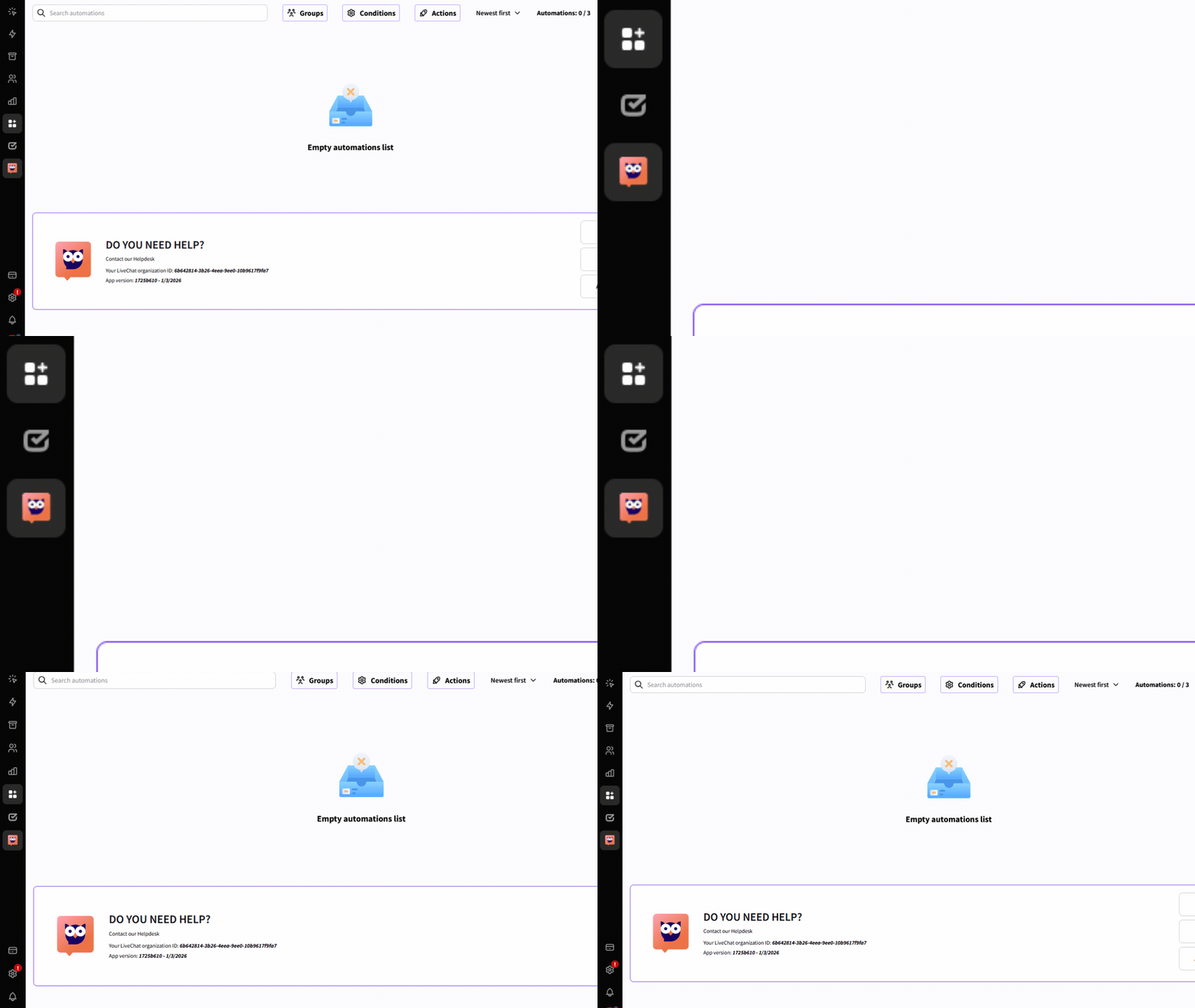
1. In LiveChat, click that friendly owl icon sitting on the left side of the interface.
You’re in.
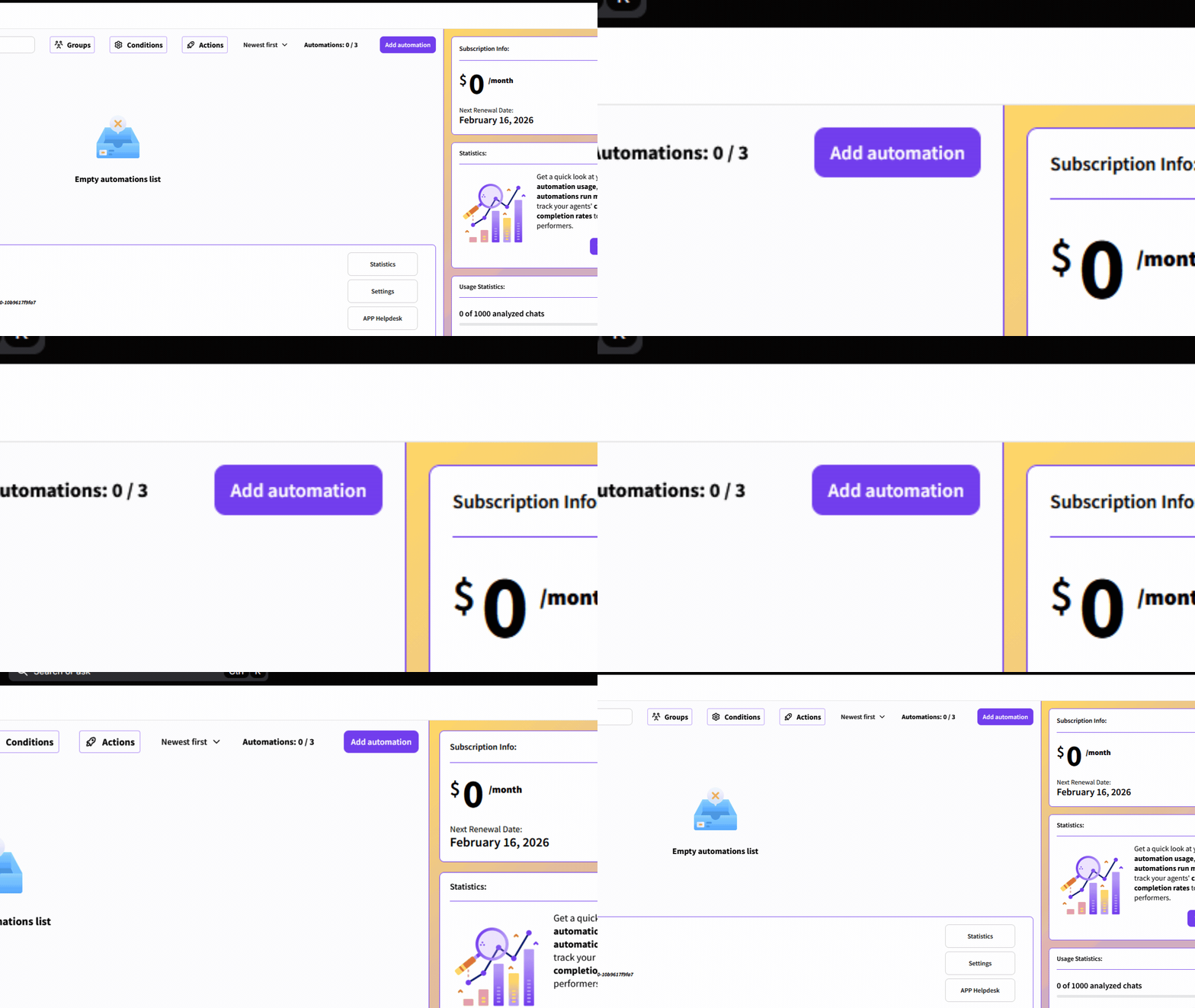
2. Click the Add Automation button.
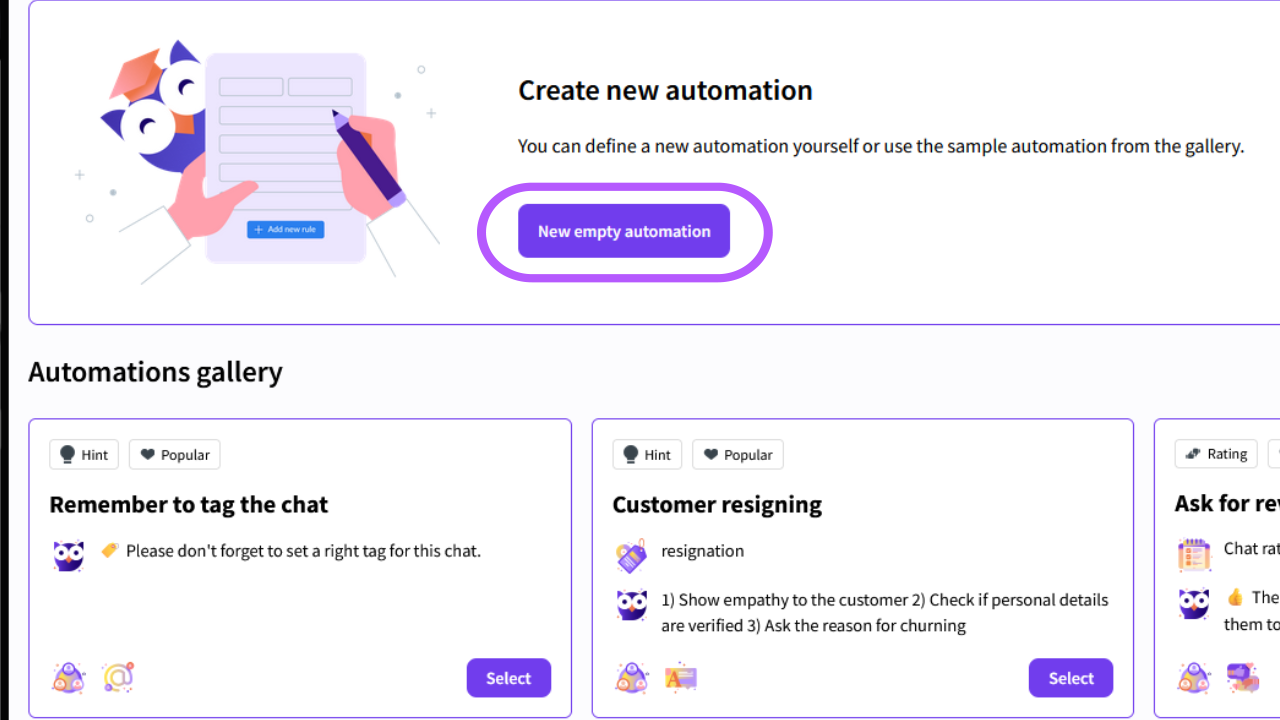
3. You’ll notice we already prepared plenty of ready-to-use automations for you (feel free to explore them later!). For now though let’s build one from scratch. Click New empty automation in the center of the app.
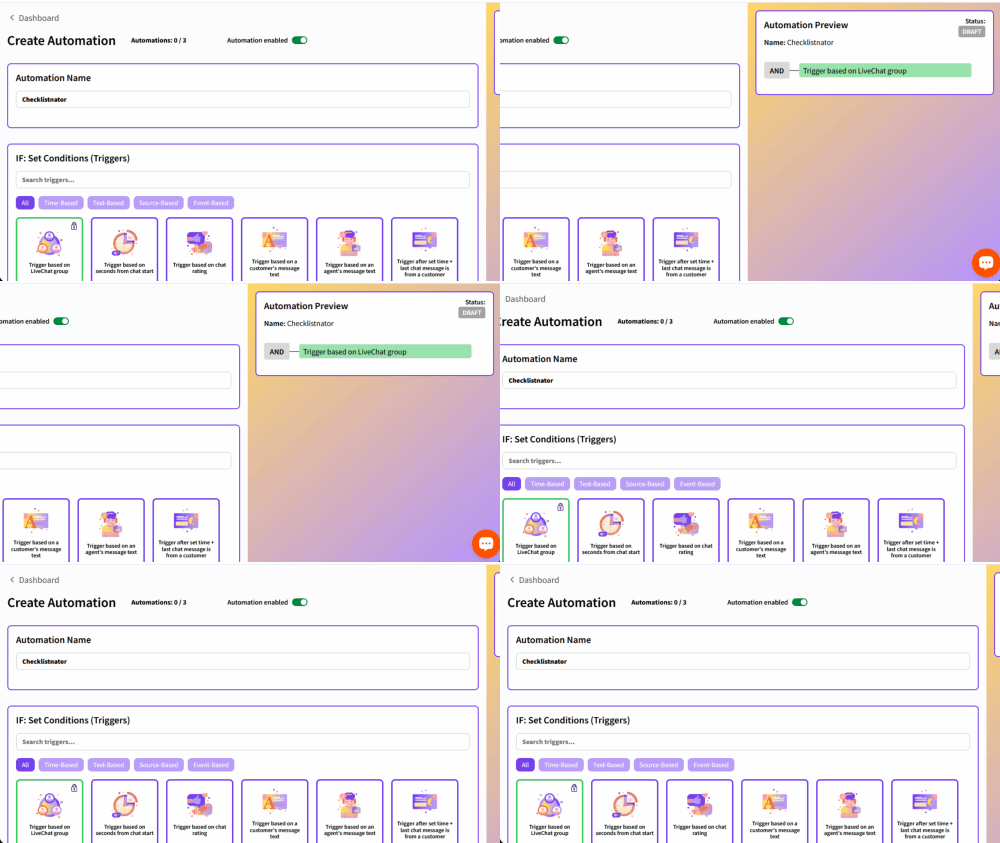
4. Give your automation a catchy name – something everyone will understand later. On the right side, you’ll see a live preview of how this automation will behave in a chat.
5. You made it to the configuration part! Let’s start with IF – the condition.
Our problem? Agents constantly forget to add customer data to the CRM. So let’s fix that once and for all.
For the IF, choose a trigger based on customer contact data. That’s it. Condition set.
6. Now for the juicy part 😎
Our conversations are highly standardized, so we use checklists daily. They help agents see exactly what’s already been said and what still needs to be done.
Let’s show a LiveChat reminder directly in the conversation for the agent to add data to the CRM. But why stop there?
Let’s also automatically tag the chat as a lead. Because honestly, why should anyone tag this manually – Super Trainer will do it for you!
Save, and that’s it! You just turned a common “Oops, forgot again” into something that handles itself. 🎉
And hey! No sticky notes, no mental checklists, and no post-chat facepalms!
From now on, Super Trainer watches your back during conversations —
so you can focus on the customer, not on remembering procedures.
And here’s the best part:
This was the easy one.
Ready to go next level?
What you’ve just built is only the beginning.
In the next guide – Play by Your Rules – you’ll learn how to:
stack multiple conditions,
combine reminders, tags and checklists,
and create automations that feel almost… unfairly smart.
That’s where the fun really starts 👉🏻
Shortcut to a stress free chats!
Note, that these features are configured by admins – but they’re built for agents.
If this sounds like something that would make your chats smoother, faster or less stressful…
it might be worth showing it to your team lead 🔎.